
How many photos do you need for a photo mosaic?
Published
You need fewer photos than you think, but they should be varied. Here is the recommended number for each poster size, what really changes between 50 and 400 photos, and how to manage with only a few.
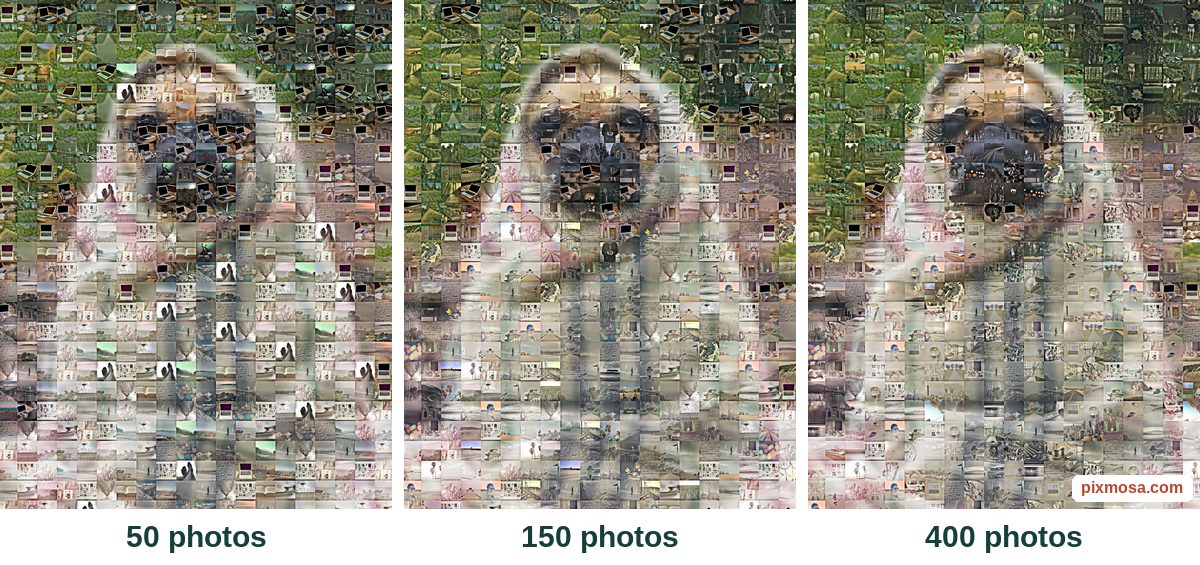
In short: 50 photos are enough to start, 150 to 400 varied photos give a great result on an A2 or 20 × 30 in poster. Photos are reused as often as needed: you do not need one per cell.
You do not need one photo per cell
A photo mosaic is a grid of small cells. On an A2 poster with 13 mm tiles (the Pixmosa default), the grid has 32 × 45 = 1,440 cells. Nobody has 1,440 varied photos at hand, and you do not need them: the tool picks, for each cell, the photo whose colours fit best, and reuses photos while spreading them over the whole surface.
So the number of photos mostly changes how often the same photo comes back. Here is the same portrait made with three different collections:
| Photos added | Photos used | Average repeats | Most repeated |
|---|---|---|---|
| 50 | 50 | 29 times | 54 times |
| 150 | 130 | 11 times | 31 times |
| 400 | 232 | 6 times | 24 times |
Real measurements on the example above (A2 portrait, 1,440 cells). With 400 photos, the tool kept only 232: the ones whose colours served the portrait. A varied collection matters as much as its size.
Recommended number for each size
The bigger the poster and the smaller the tiles, the more cells there are to fill. The tool shows the number of cells as soon as you pick the size.
| Size | Cells (13 mm tiles) | Recommended photos |
|---|---|---|
| 30 × 40 cm | 690 | 50 to 150 |
| 16 × 24 in, 40 × 60 cm or A2 | 1,380 to 1,440 | 150 to 300 |
| 20 × 30 in or 50 × 75 cm | 2,166 to 2,262 | 200 to 400 |
| 24 × 36 in or 60 × 90 cm | 3,174 to 3,220 | 300 to 500 |
The tool's counter guides you too: under 50 photos is too few; 50 to 149 is fine; 150 to 399 is a varied collection; 400 and more is very varied.
Variety beats quantity
- Mix colours and light: bright and dark photos, indoors and outdoors, sky, greenery, faces. They are what redraws the light and dark areas of the portrait.
- Skip bursts: ten nearly identical shots count as one photo for the mosaic.
- Prefer centred subjects: each photo is cropped to a centred square; a face at the edge of the frame may be cut.
- Resolution hardly matters: each tile photo is reduced to 512 pixels square, so any phone photo is enough.
Only a few photos? Three settings that help
- Make the tiles bigger ("Tile size" setting): at 18 mm, an A2 has 759 cells instead of 1,440. Each photo shows better; the portrait is a little less detailed.
- Pick a smaller size: a 30 × 40 cm poster fills well with 50 to 150 photos.
- Keep the default "No-repeat distance": the tool avoids placing the same photo twice within two cells, which makes repeats much less visible.
Your photos stay on your device: the mosaic is computed in your browser, and no photo is uploaded.
Questions
What is the minimum number of photos?
One photo is enough for the tool to work, but below 50 the same images come back very often and show. Aim for at least 50 photos, ideally 150 or more.
What is the maximum?
Up to 1,000 photos per mosaic on a computer and 300 on a phone. Beyond 400 varied photos, the gain is hard to see on an A2 poster.
Do the photos need to be high resolution?
No. Each tile photo is reduced to 512 pixels square: any phone photo is enough. Variety of colours and subjects is what matters.
Should I add the same photo several times?
No need: the tool already reuses photos as often as needed, and by default avoids placing the same photo twice within two cells. Duplicates add no variety.